












If you are looking to add some personality and customization to your device, there’s no better way than through the use of beautiful wallpapers. Setting a wallpaper on your phone is a fun and creative way of showcasing personal style. In this article, you’ll learn about iPhone wallpaper size and how to set up one for different iPhone models.
Find the Right iPhone Wallpaper Dimensions
Whether you consider yourself to be an artistic person or not, wallpaper is a background for your device that is solely meant for you. It’s great when you have the creative freedom to use any background of your choice. Apple makes it easy to use your favorite images as an iPhone background, even photos captured with your excellent iPhone 17 Pro Max camera.
The background image is that on which the device's icons and other control features are placed. Users can set a custom wallpaper for both the lock screen and the home screen, where all of their app icons appear. This extra level of personalization can be a huge difference in a world where millions of people have access to the same smartphones.
However, it's possible that the picture you intend to use doesn't fit the screen of your device perfectly. The picture of your choice has to perfectly fit the screen resolution of the device in question. We've created a tabular guide to show you the different screen resolutions that are available for iPhones.

| Device Name | Screen Resolution |
| iPhone 6 | 750 x 1334 |
| iPhone 6 Plus | 1080 x 1920 |
| iPhone 6s | 750 x 1334 |
| iPhone 6s Plus | 1080 x 1920 |
| iPhone SE (2016) | 640 x 1136 |
| iPhone 7 | 750 x 1334 |
| iPhone 7 Plus | 1080 x 1920 |
| iPhone 8 | 750 x 1334 |
| iPhone 8 Plus | 1080 x 1920 |
| iPhone X | 1125 x 2436 |
| iPhone XS | 1125 x 2436 |
| iPhone XS Max | 1242 x 2688 |
| iPhone XR | 828 x 1792 |
| iPhone 11 | 828 x 1792 |
| iPhone 11 Pro | 1125 x 2436 |
| iPhone 11 Pro Max | 1242 x 2688 |
| iPhone SE (2020) | 750 x 1334 |
| iPhone 12 | 1170 x 2532 |
| iPhone 12 mini | 1125 x 2436 |
| iPhone 12 Pro | 1170 x 2532 |
| iPhone 12 Pro Max | 1284 x 2778 |
| iPhone 13 mini | 1080 x 2340 |
| iPhone 13 | 1170 x 2532 |
| iPhone 13 Pro | 1170 x 2532 |
| iPhone 13 Pro Max | 1284 x 2778 |
| iPhone 14 | 1170 x 2532 |
| iPhone 14 Plus | 1284 x 2778 |
| iPhone 14 Pro | 1176 x 2556 |
| iPhone 14 Pro Max | 1290 x 2796 |
| iPhone 15 | 1179 x 2556(6.1″ Display) |
| iPhone 15 Plus | 1290 x 2796(6.7″ Display) |
| iPhone 15 Pro | 1179 x 2556(6.1″ Display) |
| iPhone 15 Pro Max | 1290 x 2796(6.7″ Display) |
| iPhone 16 | 1179 x 2556(6.1″ Display) |
| iPhone 16 Plus | 1290 x 2796(6.7″ Display) |
| iPhone 16 Pro | 1206 x 2622(6.3″ Display) |
| iPhone 16 Pro Max | 1320 x 2868(6.9″ Display) |
| iPhone 16e | 1170 x 2532(6.1″ Display) |
| iPhone 17e | 1170 x 2532(6.1″ Display) |
| iPhone 17 | 1290 x 2796(6.3″ Display) |
| iPhone 17 Pro | 1290 x 2796(6.3″ Display) |
| iPhone 17 Pro Max | 1320 x 2868(6.9″ Display) |
| iPhone Air | 1320 x 2868(6.5″ Display) |


How to set a wallpaper that fits perfectly on your iPhone background?
Setting a wallpaper that fits the phone background perfectly is a relatively straightforward process. If you have managed to get the right screen resolution, the next thing is to choose a wallpaper and display it in the background. To do this, follow the simple steps outlined below::
- Navigate to the settings app on your phone and click on “wallpaper”.
- Select “choose a new wallpaper”.
- When you get to the “choose” screen, select the image of your choice.
- You may zoom in or out by pinching and expanding your fingers on the image. Zoom in or out until you are satisfied with how the image is placed on the screen.
- If you are finding it difficult to get the edges of the photo into the background, it’s probably because you have got Perspective Zoom turned on. This means that the phone has to zoom in on the picture and leave some of the edges outside to enable this effect. You can disable the effect by tapping on the feature button at the bottom of the screen.
- Tap set and choose if you want the image as the home screen, lock screen or you want it to feature on both of them. You’re done and your favorite image would appear in the background.

How To Size Your Wallpaper With Canva?
If the previous process fails, the next step is to use a program like Canva to create a template that fits the image. There are a variety of ways to fix that problem, but for this article, we’ll be dealing with how to fix the problem with Canva.
Canva is a helpful tool that lets iPhone users create personalized wallpapers from scratch by starting a new template or editing existing ones. Users may decide to use the already-existing template to create any wallpaper of their choice. First, you need to download the wallpaper from the App Store to your iPhone. Search for “Canva” and download it on your device.
Additionally, Canva requires that you manually input the aspect ratio for your Apple product. This information is available above, or you could check the official Apple website to find information about a particular product. Input these dimensions to get your black canvas. To input the information on your aspect ratio, do these:
- Click custom dimensions. This would give open a dialog box for you to input the personalized specifications for the new design.
- Input the screen resolution for your device from the table above
- Invert the numbers for the screen resolution to make sure that the smaller number represents the width while the larger number represents the height, for a portrait wallpaper.
- Select create
At this stage, you’ll be displayed with a black canvas for you to do your personalization.
Creating the design on the canvas is the fun part of the whole process. Users are free to personalize and add almost anything including images, text, templates, etc. You can make the image complex or simple depending on exactly what you want. You can add elements to your design by clicking the plus (+) icon found in the bottom right corner.
When you are done with your design, make sure to save the image by clicking the download icon found at the top right corner of your screen. This newly designed wallpaper would appear in photos.
Protect Your Personalized iPhone with the Right Case
Even the perfect wallpaper cannot help if a drop ruins your iPhone. A good case protects your device from bumps, slips, and everyday wear. After solving the wallpaper size problem, it makes sense to protect the hardware too, and this is where ESR comes in. ESR creates reliable iPhone cases that combine solid drop protection with slim designs for iPhone 16 and 17 Series phones.
Now, let’s explore the best ESR iPhone cases to match your new wallpaper.
Classic Hybrid Magnetic Case
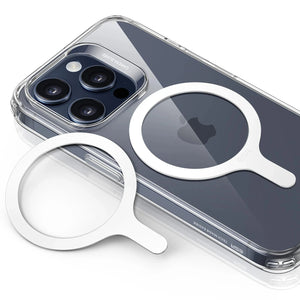
A hard back and flexible edges protect your iPhone from everyday drops, scratches, and corner impacts. Slim, balanced protection keeps your phone comfortable to hold while still guarding the screen and camera. Strong built‑in magnets support stable MagSafe charging and mounts without shifting or unexpected disconnects.

Cyber Tough Case
Reinforced layers help protect your iPhone during hard drops, rough handling, and outdoor use. Raised edges and rugged corners reduce the risk of cracked screens and damaged camera bumps. Powerful magnetic alignment keeps MagSafe chargers and stands locked in, even with the thicker protective build.

Cloud Soft Case
Soft silicone gives a secure, comfortable grip that helps prevent slips while using your phone. Lightweight protection reduces hand strain but still cushions everyday knocks and minor drops. Thin magnetic design keeps MagSafe charging reliable, so your phone stays aligned on chargers and accessories.

Conclusion
In summary, this guide explains the ideal iPhone wallpaper sizes and how to make any image fit perfectly. Before setting a wallpaper, consider factors like screen resolution, aspect ratio, and how icons and widgets sit on top. If you want a setup that looks great and stays protected, ESR cases are an excellent match for personalized iPhones.
iPhone 17 Colors Explained: A Complete Guide to Every New Shade (2025)


