




When your iPhone is warm to the touch, and the battery is draining faster than normal, those two things aren't a coincidence. They're almost always the same system under strain, showing up as two symptoms. Something is pushing your processor or battery harder than it needs to be — and once you find what that is, both problems go away.
Most of the time, it can be fixed in a few minutes. Occasionally, it's a hardware fault that needs to be taken to a repair shop, such as when the battery is due for replacement. What follows is how to tell which one you're dealing with.
Warm vs. Actually Too Hot
Some warmth is completely normal. Your iPhone gets warm during video calls, GPS navigation, gaming, and software downloads — the processor and battery are working harder, and the temperature settles back down once the task wraps up. Apple rates iPhones to operate comfortably up to 95°F (35°C), and within that range, background warmth from demanding tasks is expected.
What's worth paying attention to is the warmth that shows up when the phone is doing almost nothing. Scrolling emails, reading, or just sitting on a desk — if the back of the phone is noticeably warm and the battery is dropping 15–20% per hour without a clear reason, something is running that shouldn't be.
The clearest signal that things have gone too far is Apple's "iPhone Needs to Cool Down" warning — a black screen that locks the phone until it cools. If that appears, get the phone out of the sun or off the charger, remove the case, and let it sit somewhere cool before you do anything else.
What's Actually Behind It
A Fresh iOS Update Still Processing
The 24 to 48 hours after an iOS update are a legitimately high-load period. The system re-indexes Spotlight search, reprocesses the photo library for on-device features, and handles background housekeeping that only needs to happen once. All of it takes processing power, and that shows up as more warmth and greater battery drain than usual.
If the problem started the same day as your update, it will resolve on its own. There's no setting that speeds up the indexing — it just needs time to finish.
A Weak Cellular Signal
Maintaining a cellular connection in low-coverage areas—basements, elevators, thick-walled buildings, rural areas—requires the radio antenna to amplify its output to stay connected or continue searching for reception towers. That sustained high-power transmission is both a heat source and a battery drain, and it happens even when the screen is off and you're not doing anything.
The giveaway is that the drain and warmth are happening while the phone is barely in use. Using airplane mode until you're back in better coverage stops it immediately.
Too Many Apps Tracking Your Location
Some apps request "Always" location access on install and keep polling the GPS in the background long after you've forgotten they're doing it. GPS is one of the most power-hungry features on an iPhone — several apps using it simultaneously put a consistent load on both the processor and the battery, enough to cause background warmth even with the screen off.
Background App Refresh Running Across the Board
iOS lets apps pull in fresh content while you're not using them, so they feel up to date when you open them. For a handful of apps that genuinely need it, it's useful. For most of the 30+ apps on a typical iPhone, it's just continuous background CPU work that keeps the processor from fully settling down, which contributes to both warmth and faster battery drain in standby.
An Aging Battery Working Harder Than It Should
As a lithium-ion battery cycles, the electrodes degrade, and internal resistance increases. A battery in that state doesn't just hold less charge — it also converts more energy to heat when delivering power under load, because higher internal resistance means more energy dissipated as warmth rather than stored. That's why an older iPhone that used to handle a two-hour gaming session without issue now heats up while doing simple tasks it easily managed before.
Apple publishes longevity benchmarks: iPhone 14 and earlier models are designed to retain at least 80% of original capacity after 500 full charge cycles; iPhone 15 and later models extended that to 1,000 cycles. Once a battery drops below that 80% mark, the heat and drain pattern becomes more consistent and harder to address through software alone.
Worth noting for readers in Europe: under the EU's Battery Regulation, starting February 18, 2027, all smartphones and tablets sold in European markets must have batteries that end users can replace themselves — no professional service required. Apple will need to meet this standard for iPhones sold in the EU from that date. Current iPhone owners in Europe still go through Apple or authorized repair partners for battery service today, but the regulation changes what future devices must offer. Outside the EU, Apple's existing model stays in place.
The Charger Adding to the Problem
Wireless charging is never perfectly efficient — some energy is always lost during the transfer between the charger's coil and the phone's receiver, and that lost energy is dissipated as heat. With a cheap or uncertified wireless pad where coil alignment is imprecise, the efficiency drops further. The phone can come off the charger warm after a quiet overnight charge with nothing running.
Qi2 certification addresses this by standardizing magnetic alignment between charger and device. When the coils are properly positioned, less energy is wasted during transfer and less heat is generated as a result. If your iPhone routinely gets warm on a wireless pad regardless of what else it's doing, the charger itself could be part of the issue.

ESR's CryoBoost wireless chargers take thermal management a step further with a built-in cooling fan that actively dissipates heat during the charge cycle, which is especially relevant if you're fast-charging while the processor is active. If you're sorting out which charger type makes sense for your setup, the Phone Charger Types guide covers USB-C PD, Qi2, MagSafe, and wireless pads in plain terms.
An App That Got Stuck
When an app crashes in an unusual way, it doesn't always close cleanly — it can get frozen in a background loop, pushing CPU usage to near 100% without anything visible on screen. The phone gets warm, and the battery charge drops as if something intensive is running, because it is.
To find it, go to Settings > Battery, then scroll down to the app usage list, and check the last 24 hours. If one app you weren't actively using is at the top by a wide margin, force-quit it. The phone will typically start to cool down within a few minutes.
A Rogue Background Process
Less common on iPhone than Android, but not impossible — particularly with apps installed through enterprise certificates rather than the App Store. Code running silently in the background can keep the CPU and network radio active without appearing in the battery usage list. The phone is warm at idle and draining fast, but no single app looks responsible.
Working Through the Fixes
Start with what's physical. A phone in direct sunlight, sitting on a hot surface, or enclosed in a thick case during heavy use won't respond to software changes until the heat source is gone. Move it somewhere cooler, take the case off, and let it settle first.
Low Power Mode buys you time. Settings > Battery > Low Power Mode immediately reduces background activity and processor performance. Turn it on while you sort out the cause — it's a diagnostic tool here, not a long-term fix.
Find which app is responsible before doing anything else. Settings > Battery, scroll to the 24-hour app list. Force-quit anything showing disproportionate usage that you weren't actively using. This alone solves it in many cases.
Restart. Clears stuck processes that don't appear in any usage screen. It's worth doing before spending time on deeper fixes — it fixes more than people expect, and it takes 30 seconds.

Turn off Background App Refresh. Settings > General > Background App Refresh > Off. Start globally. If you notice an app stopped updating in a way that matters to you, re-enable it specifically.
Trim Location Services. Settings > Privacy & Security > Location Services. Anything set to "Always" that doesn't have a genuine continuous-tracking reason — switch it to "While Using." Maps, Find My, and rideshare apps have a real case for "Always." Most others don't.
Update iOS and your apps. Settings > General > Software Update for iOS; App Store > your profile icon for app updates. Buggy app versions and unpatched iOS issues cause more runaway background CPU behavior than people realize, and fixes regularly come through updates.

Reset All Settings if nothing's worked. Settings > General > Transfer or Reset iPhone > Reset > Reset All Settings. No data is deleted — it resets network connections, privacy permissions, and system preferences. It clears configuration-level issues that other steps can't reach.
Check battery health before going further. Settings > Battery > Battery Health & Charging. If Maximum Capacity reads below 80%, you've found the likely source of both the heat and the drain. More software troubleshooting won't fix a battery that's past its intended lifespan. The iPhone Battery Draining Fast guide covers what the health readings actually mean and what to expect from a replacement.
Full factory reset as a last resort. A complete erase-and-restore through Finder or iTunes — not just a settings reset, but a clean iOS install — is the deepest software fix available. If a rogue background process is a concern, this is what rules it out. Back everything up first.
When It's a Hardware Problem
Persistent warmth at true standby — screen off, no active apps, not on a charger, just sitting on a table — that doesn't respond to any of the above usually points to something in the hardware.
Water exposure is the most commonly overlooked cause. Moisture that didn't seem serious at the time can cause partial short circuits on the logic board that draw current continuously and generate heat. Nothing shows up in the battery usage list because the draw is happening below what iOS can see. Diagnosis requires physical inspection of the board — there's no software path to fix it.
If you're weighing repair cost against replacing the phone, the When Is It Time to Replace Your iPhone guide works through that calculation specifically.
What Keeps It from Happening Again
The two factors that most affect how quickly a battery degrades are charging temperature and charger quality — and both are easier to control than most people think.
The charging environment matters more than the charger's wattage. Apple's documentation explicitly notes that high ambient temperatures during charging cause permanent capacity loss faster than standard cycle wear. A battery that charges in a hot car every afternoon will degrade noticeably faster than one that charges at room temperature. Moving the phone somewhere cooler to charge isn't just a minor preference — it has a measurable effect on battery life.
On the charger side, a quality USB-C PD adapter from a reputable manufacturer delivers consistent power and cuts off cleanly. A cheap off-brand brick is less efficient, and that inefficiency comes out as heat at the battery. For wireless charging specifically, Qi2-certified and MagSafe-certified chargers maintain accurate coil-to-coil transfer, reducing energy wasted as heat. An uncertified generic pad is inconsistent in both alignment and power regulation.
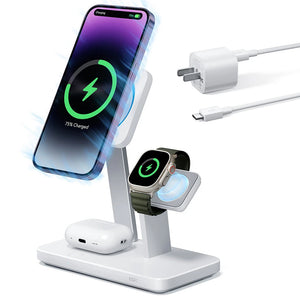
For a desk or nightstand, ESR's 3-in-1 CryoBoost charging station handles iPhone, Apple Watch, and AirPods from a single unit with a built-in fan that actively manages temperature. Beyond the thermal side, having a consistent charging spot means the phone isn't buried under fabric on a nightstand or propped against something warm — both of which add unnecessary heat during an overnight charge.
Battery health is worth checking once a year. It takes ten seconds. Catching the reading before it hits 80% means scheduling a replacement on your own schedule, not in a panic when the phone starts behaving badly.
For more on what happens during overnight charging and how iOS manages the charge cycle automatically, see " Is Charging Your iPhone Overnight Bad for the Battery? covers the specifics. And if your iPhone stops charging at 80% and you've wondered why, Why Does My Phone Stop Charging at 80%? explains the logic behind Optimized Battery Charging.
FAQ
Why did my iPhone battery start draining so fast all of a sudden?
A sudden increase in battery drain is usually caused by either a recent iOS update performing background indexing or an app that began misbehaving after an update. Background indexing typically finishes within a day or two. To identify the cause, go to Settings > Battery and check battery usage over the last 24 hours. If an app you haven't been actively using is consuming excessive power, force-closing or updating it often resolves the issue.
Does getting hot actually damage an iPhone battery?
Yes. Repeated exposure to high temperatures accelerates battery aging. Apple recommends avoiding temperatures above 95°F (35°C), especially while charging. Occasional heat exposure is unlikely to cause noticeable damage, but regularly charging your iPhone in hot environments or leaving it in direct sunlight can reduce battery capacity over time.
How do I know if I need a battery replacement?
Open Settings > Battery > Battery Health & Charging and check the Maximum Capacity value. Apple generally considers 80% to be the point at which battery performance is significantly reduced. If your iPhone also shuts down unexpectedly with 20–30% battery remaining, it's a strong indication that the battery should be replaced.
Can a wireless charger cause my iPhone to overheat?
Yes. Poor-quality or misaligned wireless chargers can waste energy during charging, generating extra heat. Qi2-certified wireless chargers use magnetic alignment to keep the charging coils properly positioned, improving charging efficiency and reducing heat buildup. If your iPhone runs noticeably cooler after switching to a certified charger, the previous charger was likely contributing to the problem.
Is it safe to use my iPhone while it's charging?
Yes. Normal activities such as messaging or browsing are safe while charging. However, avoid combining demanding tasks like gaming, video editing, or long video calls with fast charging at maximum screen brightness, as these activities generate additional heat that can affect battery longevity.
What does the EU Battery Regulation mean for iPhone users in Europe?
Beginning on February 18, 2027, smartphones sold in the European Union must feature batteries that users can replace without professional assistance. This requirement applies to new devices sold from that date onward. Current iPhone owners will continue to use Apple's existing repair and battery replacement services until newer compliant models become available.


